Showing posts with label SD. Show all posts

Friday, 7 April 2017

How to Create Goods Receipt in SAP: MIGO, MB1C, MB03

To create  goods receipt, you can use MIGO or MB1C transaction.
Mostly people use MIGO as it's designed to have all the options for all of the movement scenarios.
Step 1)
  1. Execute the MIGO transaction.
  2. Choose A1 – Goods receipt process.
  3. Choose R01 – Purchase order.
  4. Enter your purchase order number here.
  5. Click on execute button.

Step 2)
Our material is transferred to the item overview section.
Choose posting and document date (recommended t stay as today like it's default).

Step 3)
  1. You can choose on the header level – Vendor tab to view vendor information.
  2. If you click on the line item number, you will see several tabs in the bottom of the screen appear, and you can choose any of those to view some specific information about the item.
  3. If you choose Material tab, you will see the general material data.

Step 4)
Check the Quantity information in this tab. You can do goods receipt for less than the initial value if you change it. You will still see the ordered quantity in the bottom of the screen.

Step 5)
The next tab contains information about the destination for the goods.
  1. You can see the movement type used for receipt process,
  2. destination plant and storage location,
  3. as well as stock type upon receipt. We can see that this material is going to be posted to quality inspection (this indicator is set in material master and has been referenced in earlier topics), so it will not be available for use until confirmed to be in satisfying quality.
  4. There's also information about goods recipient and unloading point.
If you need to change the storage location, or override the stock posting type, you can do it here..

Step 6)
You can find purchase order related data in this tab.
  1. You can change the update type for delivery completed indicator (on the purchase order). It is set to be automatically updated upon posting, but you can change it if your process requires a different approach.
  1. After review of all of the tabs, and after you have assured that your data is accurate, you can flag the items as OK. Now you can post the document.
Upon posting, you will see that material document has been generated.

Now you can check the material document by using transaction code MB03.
  1. Execute the transaction MB03.
  2. Enter material document and document year.
  3. Press ENTER.
You can see some basic information about the document and items.
Double click the item.
On item details, you can see some additional item information.


You are done with posting the goods receipt. The process is the same for the production order, as well as for the inbound delivery.


Also See

SAP Tips and Tricks - 3


Saturday, 31 March 2012

SAP eCATT Step by Step

eCATT (extended Computer Aided Test Tool) is an SAP Testing Tool used to automate & test business scenarios in SAP R/3. Each test that was executed on eCATT will generate a detailed log on test process and results. If the testing is successful without any errors log we can say that the business scenario mapped in SAP is correct. If the test results shows error then the problem can be analyzed using the error log that is generated by the system

You will get to know what eCATT is, how we can use it, how we can load a test data from a file in ECC 6.0 with an example

Transaction Code: SECATT

1) Create Test Script


Click Create or F5 and the following screen will be displayed


Enter Title as required and the Component as BC-TWB-TST-ECA and Click on the Pattern Button on the menu bar

An Insert Statement dialog box appears


Select Group as UI Control, Command as TCD (Record), Transaction code as MM01 and Press Enter. The system generates a default interface as a MM01_1
Click the Enter

System will start Record the function that you are attempting to perform i.e creation of Material Master


Select the material views, organizational elements as required and follow the views of the material master. After creating material master system will be returned to the eCATT and prompt the alert box with message

You will see following screen


Now double-click on the interface. In this example the interface was named MM01_1, 

you will get following screen


By using split screen now you can navigate through various screens you are recorded and replace the fixed values with variables


This is done by opening the Dynpro menu and going through each numbered screen to review your input

From the above screen print you can see the values Industry sector “M “and Material Type “FERT” as in input values i.e. VALIN. You must change it to a value as shown in the next screen


he variable names are MBRSH and MTART for industry sector and Material type respectively. Once you enter the variable name and press ENTER, the following screen will appear


The default parameter will be Local. You can change this to Import and click on the "Yes" button

The screen will now look like the following screen. Note the icon on screen 1 has changed from the Green Square. This icon indicates a variable is present


Now you can change the all the variables in same process
Click on SAVE icon after completing and save as a local object or place in a development class to transport the eCATT


Click on the SAVE icon you can see the message” Test Script: “………..” saved successfully is generated

2) Creating Test Configuration
Before executing eCATT first you need to create a Test Configuration. Use Transaction code SECATT to executing and entering a name for the Test Configuration and clicking on the Create icon. (In this Example I have given same name as Test Script)


Give Test Configuration a Name and Component and then click on the configuration tab to see the following screen


Enter the name of the Test Script you would like to execute
 Download icon or just press ctrl+shift+F11. You will be prompted with a window "save as" dialog box. Accept the default name and directory and click save, here file will be saved in text format (ex: VAR_ECTC_Z_MATERIALMASTER_MM01.TXT)

After click on SAVE system will prompt the following alert box


This appears since we did not create a Test Container. Click on the YES icon and you can see the message at the bottom of the screen "variants successfully downloaded"

Now click on the Variants tab and you should see the following screen


We must now set the default mode for each time the Test Configuration is executed. Since you will always be running the script with an external file choose the External Variants /Path option


Now click on the drop-down on the File and choose the variant file you just created in the previous step. Your screen should look similar to the one shown below:


Now click on the SAVE icon and save as a local object or place into a development class (package) so that it can be transported

The message
appears at the bottom of the screen
Now you are ready to execute your new eCATT Test Script via the Test Configuration. Open your .txt file and convert the file in to excel file (ex: VAR_ECTC_Z_MATERIALMASTER_MM01.xls) enter your variables


Convert the same Excel file to text file to upload during the execution. If you upload it in .xls format, then SAP will not be able to read it
Now go back to SAP and run tcode SECATT and enter your Test Configuration and click Execute. You can see the below screen


You can choose your Error behavior. Change it to "NO termination, Continue with Next Script Command"
Click on the Variants tab and validate the mode and file path are correct


Click on the UI control and specify whether you would like to execute in the foreground or background. The test configuration will normally default to the background. As with the CATT the foreground method of execution is very helpful when trying to troubleshoot errors in the test script


Then click execute and you are done
eCATT display log appears


Also see


Sunday, 16 October 2011

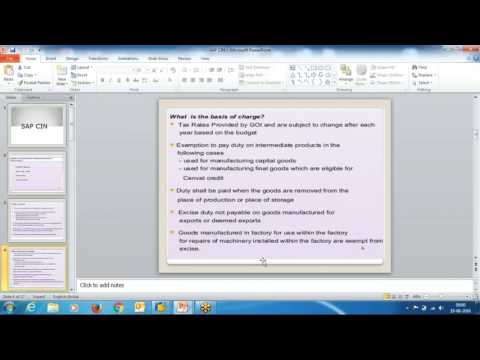
CIN configuration in SAP SD

CIN configuration in SAP SD In his video you will see the concept of CIN and step by step Configuration in SAP SD Also see ...