Showing posts with label tricks. Show all posts

Saturday, 22 April 2017

CIN configuration in SAP SD

CIN configuration in SAP SD

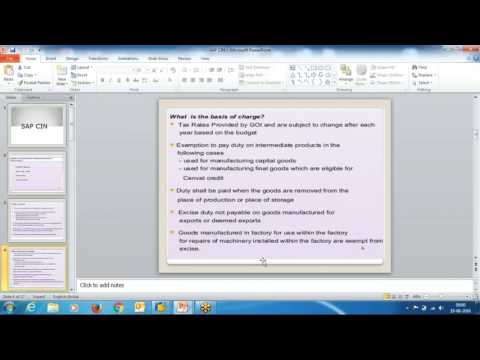
In his video you will see the concept of CIN and step by step Configuration in SAP SD


Also see

Friday, 7 April 2017

How to Create Goods Receipt in SAP: MIGO, MB1C, MB03

To create  goods receipt, you can use MIGO or MB1C transaction.
Mostly people use MIGO as it's designed to have all the options for all of the movement scenarios.
Step 1)
  1. Execute the MIGO transaction.
  2. Choose A1 – Goods receipt process.
  3. Choose R01 – Purchase order.
  4. Enter your purchase order number here.
  5. Click on execute button.

Step 2)
Our material is transferred to the item overview section.
Choose posting and document date (recommended t stay as today like it's default).

Step 3)
  1. You can choose on the header level – Vendor tab to view vendor information.
  2. If you click on the line item number, you will see several tabs in the bottom of the screen appear, and you can choose any of those to view some specific information about the item.
  3. If you choose Material tab, you will see the general material data.

Step 4)
Check the Quantity information in this tab. You can do goods receipt for less than the initial value if you change it. You will still see the ordered quantity in the bottom of the screen.

Step 5)
The next tab contains information about the destination for the goods.
  1. You can see the movement type used for receipt process,
  2. destination plant and storage location,
  3. as well as stock type upon receipt. We can see that this material is going to be posted to quality inspection (this indicator is set in material master and has been referenced in earlier topics), so it will not be available for use until confirmed to be in satisfying quality.
  4. There's also information about goods recipient and unloading point.
If you need to change the storage location, or override the stock posting type, you can do it here..

Step 6)
You can find purchase order related data in this tab.
  1. You can change the update type for delivery completed indicator (on the purchase order). It is set to be automatically updated upon posting, but you can change it if your process requires a different approach.
  1. After review of all of the tabs, and after you have assured that your data is accurate, you can flag the items as OK. Now you can post the document.
Upon posting, you will see that material document has been generated.

Now you can check the material document by using transaction code MB03.
  1. Execute the transaction MB03.
  2. Enter material document and document year.
  3. Press ENTER.
You can see some basic information about the document and items.
Double click the item.
On item details, you can see some additional item information.


You are done with posting the goods receipt. The process is the same for the production order, as well as for the inbound delivery.


Also See

SAP Tips and Tricks - 3


Friday, 31 March 2017

SAP Tips and Tricks - 3

/n - Takes the user to the root SAP Easy Access menu from anywhere.
/n + [T-code] - Takes the user directly to the desired T-code from anywhere. For example, “/nVA01” will take the user directly to the Create Sales Order screen.
/* + [T-code] Like ‘/n + [T-code]’, but takes the user directly into the desired T-code with the last values used. For example, “/*XD02” will take the user directly into change mode screen for the last customer you were changing.
/nexCloses all windows for the current system/client and logs off of SAP.
/oAlone, it will generate an “Overview of Sessions” screen for the current system. It also allows you to generate a new session.
/o + [T-code]When used as a prefix to a transaction code, it will open the target transaction in a new window. For example, “/ova01” will open up the Create Sales Order screen in a new window.
Ctrl-Y - Use this key combination on a variety of screens to grab several lines of text or several cells of values in a table. Results can be pasted just about anywhere including Word, Excel, and Outlook. After you hit Ctrl-Y, you will see the mouse pointer turn to a cross-hair. You can then select values from ALV tables, SAPscript reports, etc.
SEARCH_SAP_MENUThis t-code is available on most newer versions of ECC. It will allow you to perform a text search for a specific transaction code or text string and returns all possible menu paths to arrive at related t-codes.
SDMOThis T-code allows the user to search for Transaction Codes using one or two text strings.
PDF! - to download a pdf copy of any print preview.
SU3 - T code to manage your own user id and default settings.
PID - On any field, press F1 and then on help window press F9 (technical information) - you will know the parameter id for the field if there is one.
Debugging - Have a notepad file with below code:
[ FUNCTION ]
Command= /H
Title=Debugger
Type=SystemCommand
While running the transaction, drop this file on transaction screen, the debugging will switch on.
Use ALT+F+W and ALT+F+U in SAP Easy Access Screen to download and upload the user favourites within/across systems.
CTRL+? - to go to the tcode command field on SAP screen.
CTRL+/ - Cursor jumps directly to the OK-Code field.

Friday, 7 October 2011

SAP R/3 Programming Tips


These are powerful ABAP/4 functions are very interesting and can bring some advantages. Improve your home development easily. They belong to standard objects and should never be changed.
  • Bp_event_raise

  • Trigger an event from ABAP/4 program.
     
  • Bp_joblog_read

  • Fetch job log executions filling the structure TBTC5.
     
  • G_set_get_all_values

  • Fetch values from a set filling the structure RGSB4.
     
  • Popup_to_confirm_loss_of_data

  • Create a dialog box in which you make a question whether the user wishes to perform a processing step with loss of data.
     
  • Popup_to_confirm_step

  • Create a dialog box in which you make a question whether the user wishes to perform the step.
     
  • Popup_to_confirm_with_message

  • Create a dialog box in which you inform the user about a specific decision point during an action.
     
  • Popup_to_confirm_with_value

  • Create a dialog box in which you make a question whether the user wishes to perform a processing step with a particular object.  
  • Popup_to_decide

  • Create a dialog box in which you require the user between the two processing alternatives, or to cancel the action.
     
  • Popup_to_decide_with_message

  • Create a dialog box in which you inform the user about a specific decision point via a diagnosis text.
     
  • Popup_to_display_text

  • Create a dialog box in which you display a two-line message.  
  • Rfc_system_info

  • Fetch information from the current instance filling the structure FRCSI.
     
  • Rs_send_mail_for_spoollist

  • Send messages from ABAP/4 programs to SAPoffice. The structure SOLI may contain the message.
     
  • Rzl_sleep

  • Hang the current application from 1 to 5 seconds.
     
  • Rzl_submit

  • Submit a remote report.
     
  • Sapgui_progress_indicator

  • Set progress indicator on the left lower corner of the current window.
     
  • Sd_print_terms_of_payment

  • Format terms of payment according to base line date and payment terms.
     
  • So_wind_spool_list

  • Browse printer spool numbers according to user informed.
     
  • So_spool_read

  • Fetch printer spool according to the spool number informed.
     
  • So_user_list_read

  • List of all users filling the structure SOUD3.
     
  • Spell_amount

  • Return the amount in words filling the structure SPELL.
     
  • Th_saprel

  • Gather information from the current system including upgrade activities. It completes fields from the structure KKS03.
     
  • Th_server_list

  • Gather information of all instances filling the structure MSXXLIST.
     
  • Th_user_list

  • List of logged users filling the structure UINFO.
     
  • Th_user_info

  • Information about the current user. It completes fields from the structure KKS03.
     
  • Th_wpinfo

  • List of work processes filling the structure WPINFO.
     
  • Ws_upload

  • Transfer files from the frontend to the application server.
     
  • Ws_download

  • Transfer files from the application server to the frontend.
     
  • Ws_excel

  • Download files at the frontend in excel format.
     
  • Ws_execute

  • Execute an external program on the presentation server.
     
  • Ws_file_delete

  • Delete file at the frontend.
     
  • Ws_volume_get

  • Get the label from a frontend device.
     
  • Ws_msg

  • Create a dialog box in which you display an one-line message.

Wednesday, 5 October 2011

SAP R/3 Troubleshooting


  • System gets stuck

  • It happens mostly when archive area is overloaded. Run the program brarchive with deletion option to release disk space.

  • Short dump

  • Not always the problem is technical. Try to create all SAPoffice users through transaction SO32 (create all SAPoffice users) and review your application data carefully.

  • Field exits are completely ignored

  • Make sure your SAP profile parameter contains the option abap/fieldexit = yes.

  • Transaction SE16 (table contents) does not work properly

  • Make usage of the menu option to regenerate the display program. You can also try changing key words according to field names. Choose Option -> Parameters users.

  • Rollback segments are too small

  • Before increasing up the rollback segment size you should verify your programs. Very often the problem belongs to them.

  • Files for rollback segments are already enormous

  • Check the rollback segments configuration. It has to match the allocated area on tablespaces. Changes have to be done using Oracle tools.

  • Extended help under windows does not link correctly

  • Check the file sapdoccd.ini under your presentation server. It must be present in the main windows directory and should assign to help files directory.

  • Release procedure with classification does not work

  • As a matter of fact you are not the only one to notice it. It hardly works. Before using release strategy you should apply all notes on OSS. Pray might be useful too.

  • Transport area is overloaded

  • The command tp clearold «SysID» cleans up the transport area according to parameters previously set on the plain file TPPARAM.

  • Instance does not establish communication

  • Shutdown the whole system and check the Interprocess Communication Facilities. Any references should be found. Either the command IPCS (UNIX) or showipc «INSTANCE NUMBER» (SAP) show all message queue, semaphore set and shared memory identifier. Before trying again you have to remove them using the command IPCRM (UNIX) or cleanipc «INSTANCE NUMBER» (SAP).

Sunday, 2 October 2011

SAP Tips and Tricks - 2


  • General command field formats
  • /nSkip to the next record if you are processing one batch input session 
    /bendCancel a batch input foreground process 
    /nendClose all R/3 sessions and logoff 
    /nxxxxCall the transaction xxxx in the same session 
    /oGenerate a session list 
    /oxxxxCall the transaction xxxx in an additional session 
    /iDelete the current session 
    /hTurn the debug mode on 
    /$tabReset all buffers (for System Administrators) 
    /$syncSynchronize instances buffers (for System Administrators)

  • Report command field formats
  • %priPrint the current report 
    %pcDownload the current report 
    %scCall the find function 
    p+Go to the next page 
    p-Go to the previous page 
    p++Go to the last page 
    p--Go to the first page

  • Helpful reports
  • RSCLTCOPCopy tables across clients 
    RSAVGL00Table adjustment across clients 
    RSINCL00Extended program list 
    RSBDCSUBRelease batch-input sessions automaticly 
    RSTXSCRPTransport SAPscript files across systems 
    RSORARELGet the Oracle Release 
    RGUGBR00Substitution/Validation utility 
    RSPARAMDisplay all instance parameters 
    RSUSR003Check the passwords of users SAP* and DDIC in all clients 
    RSUSR006List users last login

  • Meaning of info structures' first letter
  • APricing 
    BOutput determination 
    CAccount determination 
    DMaterial determination 
    ERebates 
    FIndex 
    GListing and Exclusion 
    HBatch determination 
    IProfile determination 
    SStatistics 
    XStatistics extra

  • Unconditional mode when importing or exporting a request/transport

  • Run the command R3trans -u under user «SysID»adm.
     
  • Reapplying hot packages

  • If you accidently applied hot packages out of sequence for instance. Use the transaction SM31 to modify table PAT03. You have to choose the desired patch and click on delete entry.
     
  • Main return codes of tp program
  • 0Successfully done 
    4Warnings occurred 
    8Errors occurred 
    12Fatal errors occurred 
    16Internal errors occurred

  • Scheduling of system maintenance jobs
  • RSBTCDELClean the old background job records 
    RSDBCREOClean batch input session log 
    RSPO0041Removing old spooling objects 
    RSSNAPDLClean the old ABAP error dumps

  • List of most used SAP extensions and their components
  • CUST1MENUS000+C01Customer option in the Office menu 
    CUST2MENUS000+C02Customer option in the Logistics menu 
    CUST3MENUS000+C03Customer option in the Accounting menu 
    CUST4MENUS000+C04Customer option in the Human Resources menu 
    CUST5MENUS000+C05Customer option in the Information Systems menu 
    CUST6MENUS000+C06Customer option in the Tools menu 
    CUST7MENUS000+C07Customer option in the System menu 
    ZXUSRU01Exit_saplsusf_001At login time 
    SAPMF02DExit_sapmf02d_001When saving customer master data 
    SAPMF02KExit_sapmf02k_001When saving vendor master data 
    M61X0001Exit_saplm61c_001When processing MRP planning 
    M61X0001Exit_sapmm61x_001When processing MRP planning 
    FYTX0001Exit_saplv61a_001Modifications in pricing procedures 
    MBCF0002Exit_sapmm07m_001Checks for materials documents 
    SDVFX002Exit_saplv60b_002Link between SD and FI documents 
    M06B0003Exit_sapmm06b_001When saving MM documents

  • Before going live

  • It is highly advisable to increase the next extend´s size of some tables and their indexes even before initial loadings
    FIBKPF, BSEG, BSIS, BSAD, BSAK, BSID and BSIK 
    COCOEJ, COEP, COKS, COSS and T811* 
    AMANL* 
    MMMKPF, MSEG and BSIM 
    SDVBAP, VBAK, VBEP, VBPA, LIKP, LIPS, VBRK, VBRP, VBKD, VBUK, VBUP and VBSS 
    PPRESB and MDTB 
    Accross moduleATAB, TST03, TSP01, MCSI, KNVP, ACCTIT, COEP, APQD, RFBLG, CDCLS, SDBAD and from S000 to S999

  • Locking the whole system

  • Using the command tp locksys «SysID» only the user SAP* will be allowed to login. The command tp unlocksys «SysID» cancels the lock.
     
  • Connection between SAP R/3 and operating system

  • The command sapevt can be used to trigger an event from the operation system. Thus, a job previously defined within R/3 will be released.
     
  • SQL code help

  • Run the command oerr ora «error number» under user ora«SysID».
     
  • Oracle import and export explanations

  • Run the command imp help=yes under user ora«SysID». This format can also be used with expimpst, and expst.

Thursday, 29 September 2011

SAP Tips and Tricks


  • Logging on without being authorized
Client 066 usually exists in a SAP system because of EarlyWatch services. Often this client does not have master users. If it is true, anyone can log into the system using the client 066, user SAP*, and password PASS. Enjoy yourself.

  • Special copy and paste
Click on the area and press CTRL+Y. It allows you to copy many lines at once and paste them afterwards.
  • Long messages on footer
Click on the message and hold the mouse button. After moving the mouse to the left side.
  • Direct input logs
The transaction BMV0 (direct input logs) shows all direct input logs.
  • Graphics on SAPscript
The program RSTXLDMC can be used to upload graphics (file extension .tif on PC files) into individual standard text.

  • Adding icons
The include «ICON» can be easily used in your programs. All icons can be checked through the transaction ICON. Sequences of characters begin and finish with the symbol @. Even plain files under operating system can contain those strings.
  • Adding symbols
The include «SYMBOL» can be easily used in your programs. It makes available a great number of symbols.
  • Filling up an empty date field quickly
Strike the key F4 (or click on matchcode symbol) and press ESCAPE. The current date is automatically set.
  • Setting up module FI/CO without using IMG
Almost all parameters can be set using the transactions ORFA (Asset Accounting), ORFB (Financial Accounting), and ORKS (Cost Center Accounting).
  • Deleting cost elements and cost centers
Since they have no postings you can use the transaction KA04 for deleting cost elements and KS04 for deleting cost centers.
  • Displaying check object when not authorized
Soon after the lock try to access the transaction SU53. It reports the last objects verified and also the respective values.
  • Table analyses between two systems
The contents of a table between two systems can be checked through the transaction OY19.
  • Correction and transport system
             The transaction SE10 provides the easiest way to manage any request/transport and         
             corrections

CIN configuration in SAP SD

CIN configuration in SAP SD In his video you will see the concept of CIN and step by step Configuration in SAP SD Also see ...