Thursday, 29 September 2011

SAP Tips and Tricks


  • Logging on without being authorized
Client 066 usually exists in a SAP system because of EarlyWatch services. Often this client does not have master users. If it is true, anyone can log into the system using the client 066, user SAP*, and password PASS. Enjoy yourself.

  • Special copy and paste
Click on the area and press CTRL+Y. It allows you to copy many lines at once and paste them afterwards.
  • Long messages on footer
Click on the message and hold the mouse button. After moving the mouse to the left side.
  • Direct input logs
The transaction BMV0 (direct input logs) shows all direct input logs.
  • Graphics on SAPscript
The program RSTXLDMC can be used to upload graphics (file extension .tif on PC files) into individual standard text.

  • Adding icons
The include «ICON» can be easily used in your programs. All icons can be checked through the transaction ICON. Sequences of characters begin and finish with the symbol @. Even plain files under operating system can contain those strings.
  • Adding symbols
The include «SYMBOL» can be easily used in your programs. It makes available a great number of symbols.
  • Filling up an empty date field quickly
Strike the key F4 (or click on matchcode symbol) and press ESCAPE. The current date is automatically set.
  • Setting up module FI/CO without using IMG
Almost all parameters can be set using the transactions ORFA (Asset Accounting), ORFB (Financial Accounting), and ORKS (Cost Center Accounting).
  • Deleting cost elements and cost centers
Since they have no postings you can use the transaction KA04 for deleting cost elements and KS04 for deleting cost centers.
  • Displaying check object when not authorized
Soon after the lock try to access the transaction SU53. It reports the last objects verified and also the respective values.
  • Table analyses between two systems
The contents of a table between two systems can be checked through the transaction OY19.
  • Correction and transport system
             The transaction SE10 provides the easiest way to manage any request/transport and         
             corrections
Wednesday, 28 September 2011

This ABAP rings the bell on any chosen pc, that has a sapgui connected to SAP


REPORT SAPLGRAP.
************************************************************************
* This program seds an audio alert to a specific user's frontend
* server. The program needs a pre-registered rfc program listening on
* every pc. The rfcexec can be started from the windows automatic
* startup like this:
* rfcexec -a100.100.100.100.rfcexec -ggatewayhostname -xsapgwXX
*                  ^                        ^
*            IP of the pc        IP of the gateway host
************************************************************************

* Get the terminal, that belongs to the user
start-of-selection.
  data: user value 'IMRE'.
  DATA: OPCODE TYPE X VALUE 2.
  DATA: BEGIN OF USR_TABL OCCURS 10.
          INCLUDE STRUCTURE UINFO.
  DATA: END OF USR_TABL.

  CALL 'ThUsrInfo' ID 'OPCODE' FIELD OPCODE
    ID 'TAB' FIELD USR_TABL-*SYS*.

* Get the corresponding IP address
  data: arp_command(30) value '/usr/sbin/arp',
        BEGIN OF TABL OCCURS 0,
        LINE(200),
        END OF TABL,
  ip_address(100).

  read table usr_tabl with key bname = 'IMRE'.
  if sy-subrc <> 0. write: 'There is no such a user logged in'.
  exit.endif.
  arp_command+14 = usr_tabl-term.
  CALL 'SYSTEM' ID 'COMMAND' FIELD arp_command
               ID 'TAB'     FIELD TABL-*SYS*.
  read table tabl index 1.
  shift tabl right up to ')'.
  shift tabl right deleting trailing ')'.
  shift tabl left up to '('.
  shift tabl left deleting leading '('.

* Get the systems that has been registered on the gateway.
  data: begin of connected_systems occurs 10.
          include structure GWY_SYSTEm.
  data: end of connected_systems.

  call function 'GWY_READ_CONNECTED_SYSTEMS'
  exporting
   gwhost = 'optima'
   gwserv = 'sapgw00'
  tables
   CONNECTED_SYSTEMS = CONNECTED_SYSTEMS.

* Get the registrated entry for the user's ip.
  data: host_string(40).

  loop at CONNECTED_SYSTEMS.
    if CONNECTED_SYSTEMS-ADDR1 = tabl and
       CONNECTED_SYSTEMS-SYSTYPE = 'REGISTER_TP'.
       host_string = CONNECTED_SYSTEMS-tpname.
      exit.
    endif.
  endloop.
  if host_string is initial. write: 'No registered RFC server'.
  exit.endif.

* Create a new destination in RFCDES
  tables: rfcdes.

  rfcdes-rfcdest = 'ZTTTT'.
  rfcdes-rfctype = 'T'.
  rfcdes-rfcoptions = 'H=%%RFCSERVER%%,N='.
  rfcdes-rfcoptions+19 = host_string.
  rfcdes-rfcoptions+59 = ','.
  condense rfcdes-rfcoptions NO-GAPS.
  modify rfcdes.
  if sy-subrc <> 0. write: 'Unsuccessfull modification'.
  exit. endif.
  commit work.

* Call the alert with the new destination
  DATA : BEGIN OF RET OCCURS 10,
          TEXT(80),
         END OF RET .
  data: command(256) value
        'sndrec32.exe /play /close c:/winnt/ringin.wav'.
  CALL FUNCTION 'RFC_REMOTE_EXEC' DESTINATION 'ZTTTT'
                                   EXPORTING
                                     COMMAND = COMMAND
                                   TABLES
                                     PIPEDATA = RET.

* Delete the rfc destination
  clear rfcdes.
  select single * from rfcdes where rfcdest = 'ZTTTT'.
  delete rfcdes.
  if sy-subrc <> 0. write: 'Unsuccessfull delete'.
  exit. endif.
  commit work.

Friday, 23 September 2011

How to Lock or Unlock a Client in SAP


The procedure to lock amd unlock a client in SAP,very rarely we need to use it..But stil u should know so follow these simple steps…


1 To lock or unlock a client in R/3 System, run the following function modules in
transaction se37
2. SCCR_LOCK_CLIENT ( to lock the client)
3. SCCR_UNLOCK_CLIENT (to unlock the client)

Run these functions with a client input which is to be locked/unlocked. This function set flag ” Client is locked temporarily for client copy” in client maintenance menu.The client will be available for users DDIC and SAP*. If any other user tries to log in, system gives message that ‘ Client locked temporarily’.
To unlock the client

1. Run transaction SE37
2. Enter the function module as SCCR_UNLOCK_CLIENT
3. press F8 or test run (single run).
4. Specify the client and execute(F8).
Follow similar procedure for locking the client…

Wednesday, 21 September 2011

Run OS Commands from SAP GUI

What a interesting piece of information now you can run os commands from SAP GUI.

Just run report RSBDCOS0 in SA38 and enjoy .

You can change working directory and all.Now no need to ask sysadmin to give password also . :)

Hope all basis will enjoy now..Specially junior guys..

Tuesday, 20 September 2011

SMS setting in SAP


The procedure/configuration to send the message from SAP .
Go to T-code SCOT
You will see screen like this
Click on PAG and then create button on same screen
Provide detail as:
NODE: HTTP
Description: SMS Integration
Select HTTP Node
Provide URL provided by third party
Keep password this field blank as we have provided the same in URL itself
Provide maximum length of character allowed by service provider
Provide field address area as *
Provide the time in minutes or hours (depends )
Select Node is ready to Use
Now you can see HTTP service
HTTP Virtual host Configuration
Go to T-code SICF and select default host and then New Sub element
In Log-on tab provide user name and password for same client
Click on HANDLER List tab and provide the handler as shown below
Finally activate the service
HTTP Client proxy setting:
In same T-code SICF
In HTTP Log tab provide proxy detail
Maintain pager Service
Go to Client 000 and run t-code SA14
Provide detail as shown below
Pager Serv: BAL
Use :SMS Service
Go to SPRO in your customizing client
SAP Web Application Server  Basis Services Address Management Define pager services
Provide detail
Pager serv : SMS
Pager service : SMS
Use : SMS Service
Composing a SMS
Go to T-code SBWP
Click on New Message
To monitor the process go to T-code SCOT here you can see 1 in waiting as we have given time for 2 minutes it will send the message after 2 min only
Go to T-code SOST and here we can check the status of message
That’s all now you can check you mobile phone for Message :)

Monday, 19 September 2011

Send Purchase Order by mail to vendor in SAP

This blog explains the steps involved in SAP ECC to send purchase order by email to a vendor as an attachment. Sending Purchase order by email to a vendor is called as "External Send" in SAP. Follow this Steps


1. mail address of the vendor should be maintained in the vendor master data while creating the vendor using Transaction code XK01, if vendor is already created maintain the email address using Transaction code XK02.

2. Maintain email address in your "own data", to ensure that the process has a sent from your email address (system>User Profile>Own Data).
Note: It is not possible to change the vendor email address permanently with standard purchase order transaction code ME21N or ME22N, we can maintain temporary only, for permanent change use transaction codes XK02 or MK02.

3. For output type default values, a communication strategy has to be maintained in the customization.
Menu path for communication strategy: (SPRO >IMG >SAP Web Application Server > Basic Services >Message Control > Define Communication Strategy). Here default value is communication structure is CS01 and communication type is INT (email), after configuration of relevant communication structure and communication type, we can find these entries in table TCSTRP.

4. Use standard SAP Program "SAPFM06P" FORM routine "ENTRY_NEU" and form "MEDRUCK" as processing routines for output type (ex NEU-Purchase order). For additional functionalities copy this program and smart form in to Z Program and Z form (Ex: Z_PO_PRINT and Z_PURCHASE_ORDER) and maintain these against output type (Ex: ZNEU-PO Email) by using transaction code NACE, For subject of the email goto Mail Title and Texts. In title give PO No. &EKKO-EBELN&

5. In order trigger the output type automatically in PO maintain the condition record using transaction code MN04 for output type, use medium as '5' (External send).

6. Use SCOT transaction code to trigger the output manually In SCOT transaction under INT double click on node SMTP and maintain SMTP connection.

  Mail Host: (IP address of the mail server)
  Mail Port :25
  Code Page: 4110 unicode UTF-8.(Example)
  Click on SET tab against the Internet check box and maintain
  SAPscript/Smart Forms: PDF or TXT as per requirement.

7. Status of the External send document can be seen in transaction code SOST.

Plz follow & Comment....

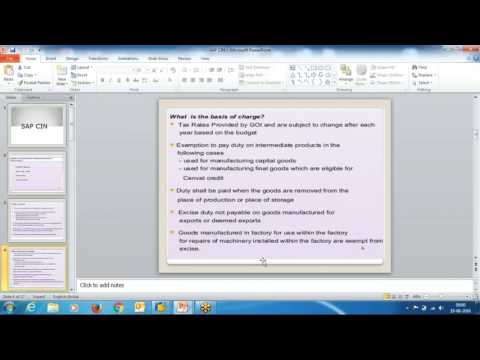
CIN configuration in SAP SD

CIN configuration in SAP SD In his video you will see the concept of CIN and step by step Configuration in SAP SD Also see ...